The best dual DisplayPort USB-C docking station depends on your monitor needs, laptop support, and the ports you use most. The MOKiN 8-in-1 is best for a simple DP-focused setup, while WAVLINK’s 12-in-1 docks suit buyers who also need Ethernet and card readers. UGREEN is a dual-HDMI alternative, and StarTech is designed for driverless Windows deployments with two 4K DisplayPort monitors.
| Dock | Best For | Notable Feature |
|---|---|---|
| MOKiN 8-in-1 | Basic DP connectivity | Two DisplayPort outputs and up to 100W PD |
| WAVLINK 12-in-1, 100W PD | Fast ports and broad connectivity | 10Gbps USB and 2.5Gb Ethernet |
| WAVLINK 12-in-1, 85W output | Three-screen Windows setups | Triple 1080p display support |
| UGREEN 10-in-1 | Dual HDMI monitors | Dual 4K HDMI output |
| StarTech Dual 4K dock | Windows workspaces | Driverless dual 4K DisplayPort |
MOKiN 8-In-1 Dual DisplayPort Dock

This MOKiN dock is best for buyers who want two DisplayPort connections in a compact set of listed functions. It includes two DisplayPort ports, HDMI, VGA, two USB-A 2.0 ports, USB-C 2.0, and a USB-C PD charging port rated for up to 100W.
Choose this model if you need several video connector options and basic peripheral connections. Its USB 2.0 ports support data transfer speeds up to 480Mbps, according to the product details, so it is better suited to everyday peripherals than high-speed file transfers.
Limitation: The listing says MacBook use is limited to mirrored displays rather than extended mode. Confirm your laptop supports video output over USB-C before choosing any USB-C video dock.
WAVLINK 12-In-1 Dock With 2.5Gb Ethernet

This WAVLINK dock is best for Windows users who want dual DisplayPort plus a wide selection of workstation connections. Its listed ports include two DP, HDMI, 100W PD input, 10Gbps USB-A and USB-C, two USB 2.0 ports, 2.5 Gigabit Ethernet, SD and TF card slots, and audio/mic.
The product information specifies dual-display output up to 4K at 60Hz over DisplayPort. It also lists single-display support up to 4K at 144Hz or 8K at 30Hz under DP 1.4 with DSC. Choose it if fast USB connections and wired networking matter alongside monitor outputs.
Limitation: The listing states that the described display expansion functions are for Windows. Check operating-system and laptop support before purchase.
WAVLINK Triple-Monitor Dock With 85W Output
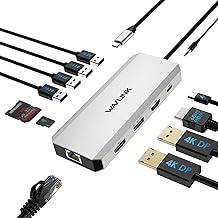
This WAVLINK model is best for Windows users planning a three-display setup at 1080p. It has two DisplayPort ports, one HDMI port, two USB 3.0 ports, two USB 2.0 ports, Gigabit Ethernet, SD and TF slots, and an audio/mic connection.
The manufacturer lists support for a single 4K display at 60Hz or three 1080p displays at 60Hz under DP 1.4. Its PD port accepts up to 100W input and provides up to 85W output to charge a laptop, making it a practical choice when display expansion and laptop charging are both priorities.
Limitation: The charger is not included, and the listed triple-display function is for Windows. Choose another dock if your priority is dual 4K output rather than three 1080p screens.
UGREEN 10-In-1 Dual HDMI Dock

The UGREEN dock is best for buyers who want two external HDMI connections rather than DisplayPort. Its 10 listed functions include two HDMI ports, 100W USB-C PD, 5Gbps USB-C data, USB-A 3.0, two USB-A 2.0 ports, RJ45 Ethernet, and SD and microSD card readers.
According to the product details, it supports two displays up to 4K at 60Hz or one screen up to 8K at 30Hz through HDMI 2. The USB-C and USB-A data ports support transfer speeds up to 5Gbps and are not described as charging or video-output ports.
Limitation: The listing notes that macOS mirrors the same content across connected displays. This is an HDMI option, so it is not the right pick if your monitors require DisplayPort inputs.
StarTech Driverless Dual 4K DisplayPort Dock

This StarTech dock is best for Windows users who need two 4K monitors at 60Hz and prefer a driverless connection. It uses the laptop’s native GPU for uncompressed video, according to the listing, and offers four USB-A 5Gbps ports, two USB-C 10Gbps ports, Gigabit Ethernet, and one USB-C port with 15W PD.
Choose it for shared workspaces or BYOD environments where plug-and-play Windows setup is important. The product is specifically described as supporting dual 4K 60Hz over USB-C.
Limitation: The listing says it is not compatible with macOS or ChromeOS. Its USB-C PD port is listed at 15W, so do not select it expecting high-wattage laptop charging.
Buying Guide: How To Choose A Dual DisplayPort USB-C Dock
Does your laptop’s USB-C port support video?
Check the laptop specifications for USB-C video output, such as DisplayPort Alt Mode or another supported display solution. A USB-C connector alone does not establish that the port can drive external monitors. Also check the dock’s operating-system notes and the laptop’s supported display count.
Do you need two 4K screens or more displays?
Compare the resolution and refresh rate listed for the exact number of displays you plan to connect. The WAVLINK 85W model lists triple 1080p support for Windows, while StarTech specifies dual 4K at 60Hz. A dock’s single-screen maximum may differ from its dual-screen capability.
Which ports and charging level matter?
For fast transfers, favor models listing 5Gbps or 10Gbps USB ports over USB 2.0. Check whether you need Ethernet, card readers, audio, or HDMI in addition to DisplayPort. Compare PD input and output carefully: an advertised input maximum does not necessarily mean that full wattage reaches the laptop.
Will it work with macOS?
Read the display-mode limitation before buying. Some listed docks mirror displays on Mac rather than extending the desktop, and the StarTech model is listed as incompatible with macOS. Match the dock’s stated support to your computer and monitor arrangement.
Frequently Asked Questions
Can any USB-C docking station run two DisplayPort monitors?
No. The dock and laptop must both support video output for the intended number of screens and resolutions. Confirm the laptop’s USB-C display capabilities and the dock’s multi-monitor specifications.
Do dual DisplayPort docks support extended displays on a Mac?
Not necessarily. The MOKiN listing specifies mirror mode only for MacBook, and UGREEN notes mirrored content on macOS. Check the specific dock’s Mac display behavior before purchasing.
What does 4K at 60Hz mean?
It describes a display output resolution of up to 4K with a refresh rate of 60Hz. A dock may support that specification for one screen but list a different limit when two or more screens are connected.
Does 100W PD mean the laptop receives 100W?
Not always. Check whether the product states PD input, laptop output, or both. For example, the WAVLINK triple-monitor dock lists 100W input and up to 85W output.
Can a DisplayPort dock connect to HDMI monitors?
These product details do not establish which adapters or cables are included. Check the monitor inputs and dock specifications, and use a suitable connection solution for the devices you have.